Loot Filter Guide
The loot filter decides what your loot key and your pet pick up. This guide starts with the simple settings. Then it goes step by step to the advanced ones. All button names below are the words you see in the game.
1. What the loot filter does
Monsters drop items on the ground. Your loot key picks up nearby drops. Your pet also picks up drops for you.
The loot filter is a list of your choices. The loot key and the pet only pick up a drop if the filter says yes. Everything else stays on the ground.
The filter does two more things. It sets the colour of the light line above a drop. It also sets the sound the drop makes when it lands.
2. Open the loot filter
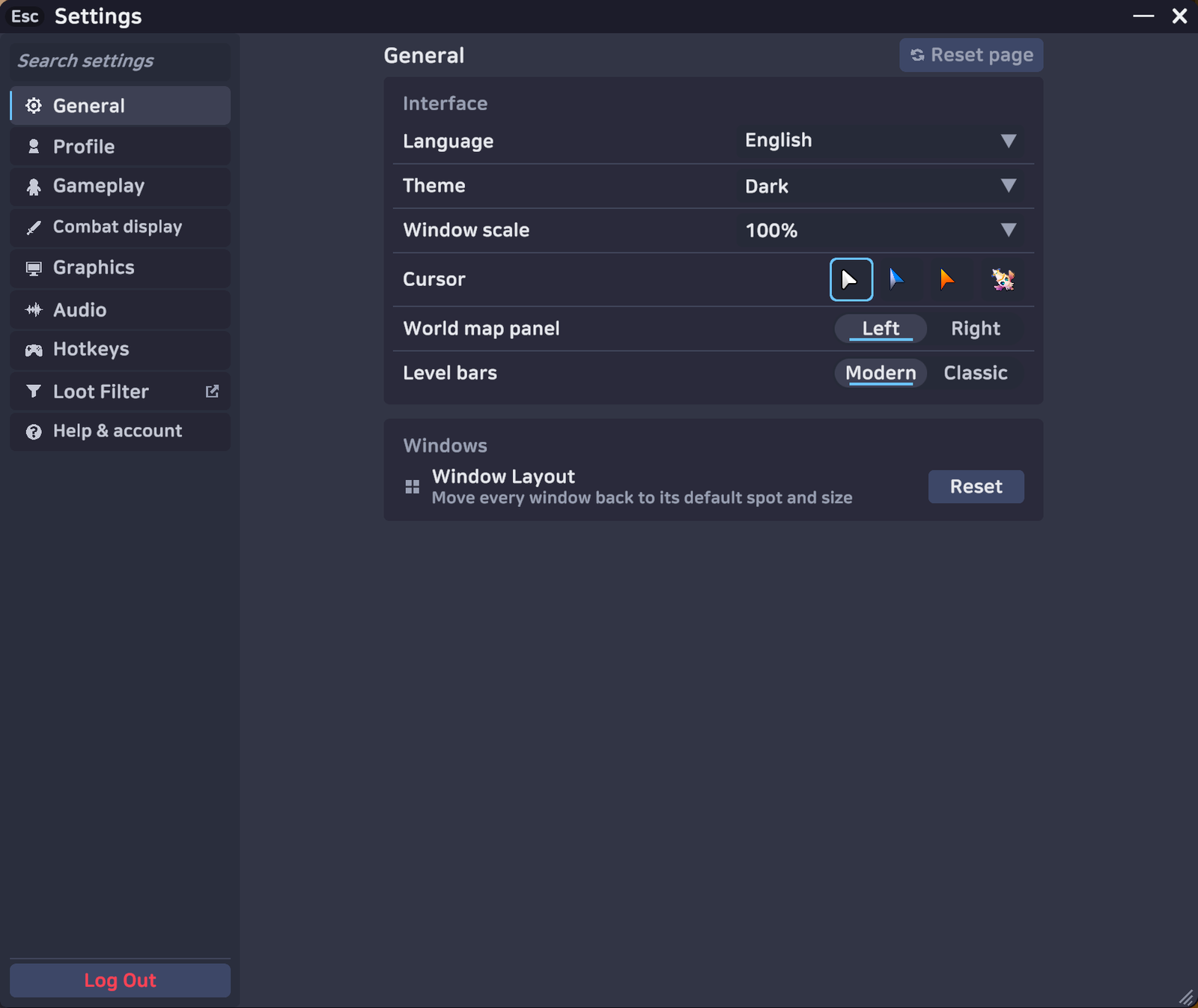
Open Settings. In the list on the left, click Loot Filter. The loot filter opens in its own window.
The Loot Filter window has two tabs at the top: Collection and Personal rules. The tab you pick fills the left side. The Ground loot preview is always on the right side. The Reset loot filter button is at the top right.
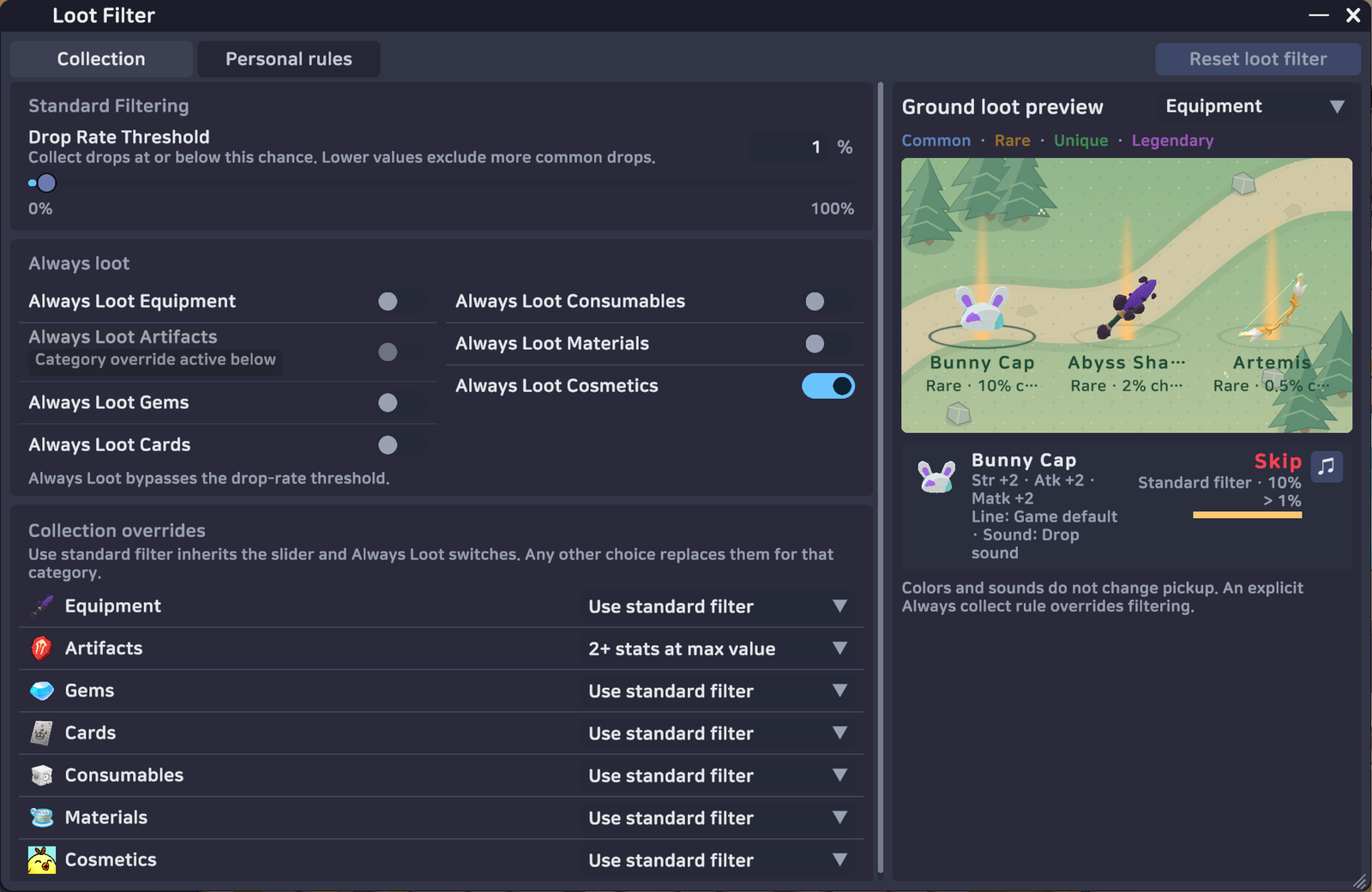
You can move the window by its title bar. You can make it bigger by dragging the bottom right corner. The window has no hotkey. It does not open again by itself when you log in.
Where your settings are saved
Your loot filter is saved on this computer. Every character you play on this computer uses the same filter. Each time you log in, the game sends a copy to the server so it can check what your loot key and pet pick up. The server does not keep it on your account. You do not need to press a save button.
3. Set the drop rate
Open the Collection tab. The first setting is in the Standard Filtering section. It is called Drop Rate Threshold.
The game text says: Collect drops at or below this chance. Lower values exclude more common drops.
Every item has a drop chance. A rare item has a small chance. A common item has a big chance. The filter keeps a drop when its chance is equal to or smaller than your number.

A concrete example
Set the threshold to 1%. Now look at two items.
| Item | Drop chance | Result at 1% |
|---|---|---|
| Box of Origins, from normal monsters | 1% | Collected. 1% is equal to 1%. |
| A drop with a 10% chance | 10% | Skipped. 10% is bigger than 1%. |
So a small number means "rare items only". A big number means "almost everything". At 100% the filter keeps every drop. A new filter starts at 100%.
Exact values
The slider moves in steps of 0.25%. Drag it for a quick change.
You can also type a value. Click the number box next to the slider. Type the value you want, for example 0.1, and press Enter. The game keeps up to 2 decimals, so 0.125 becomes 0.13. Values below 0 or above 100 are set to 0 or 100. The slider handle then rests on the nearest step.
4. Always loot switches
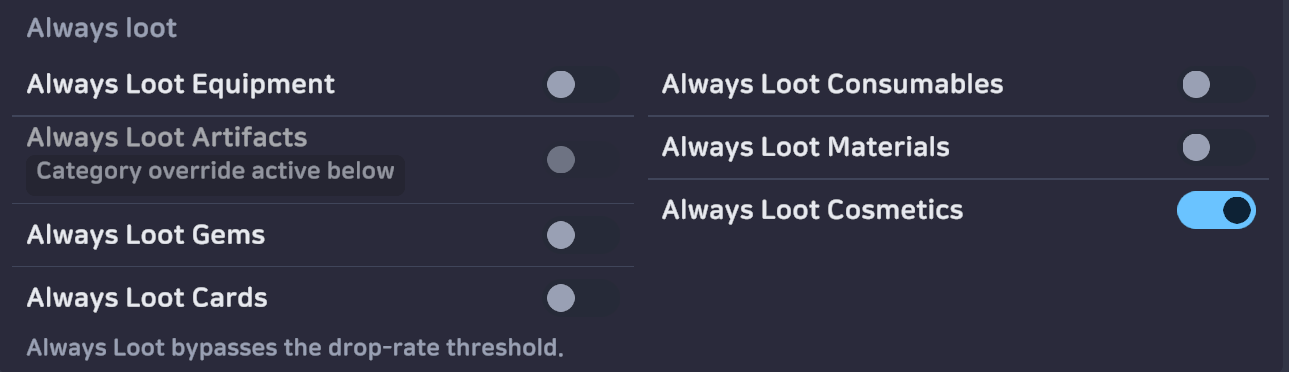
Under the threshold is the Always loot section. It has seven switches, one for each item category.
- Always Loot Equipment
- Always Loot Artifacts
- Always Loot Gems
- Always Loot Cards
- Always Loot Consumables
- Always Loot Materials
- Always Loot Cosmetics
Turn a switch on to always take that category. The game text says: Always Loot bypasses the drop-rate threshold. So the threshold is ignored for that category. All switches start off.
5. Collection overrides
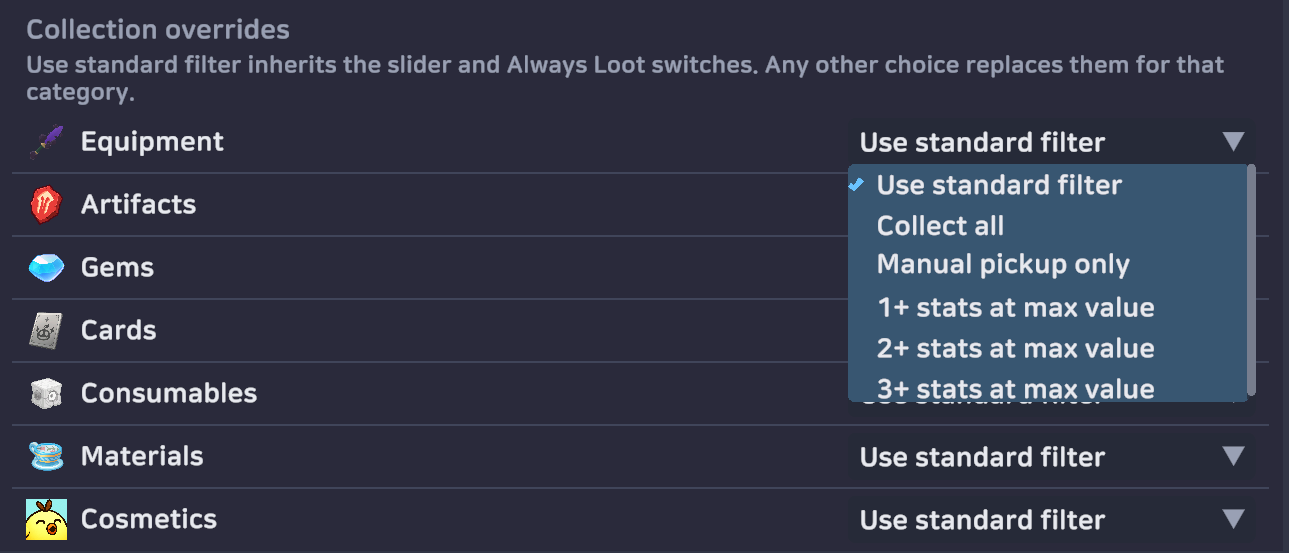
The last section of the Collection tab is Collection overrides. It has one row for each category. Each row has a dropdown with a mode.
The game text says: Use standard filter inherits the slider and Always Loot switches. Any other choice replaces them for that category.
| Mode | What it does |
|---|---|
| Use standard filter | The default. The threshold and the Always Loot switch decide. |
| Collect all | Take every drop in this category. |
| Manual pickup only | Take nothing. Only a mouse click or a personal rule with Always collect matching drops picks it up. |
| 1+ stats at max value | Take the drop when at least 1 stat line rolled its highest value. |
| 2+ stats at max value | Take the drop when at least 2 stat lines rolled their highest value. |
| 3+ stats at max value | Take the drop when at least 3 stat lines rolled their highest value. |
6. Ground loot preview
The right side of the window is the Ground loot preview. It is always there, on both tabs. It shows up to three sample drops on a small meadow.
Use the dropdown at the top right of the preview to pick a category. The samples are real items that drop in the game.
Click a sample. The panel below shows its stat rolls, its ground line and its sound. It also shows Collect or Skip, and the reason. For example: Standard filter · 10% > 1%, or Personal rule · Boss cards. The small note button plays the drop sound.
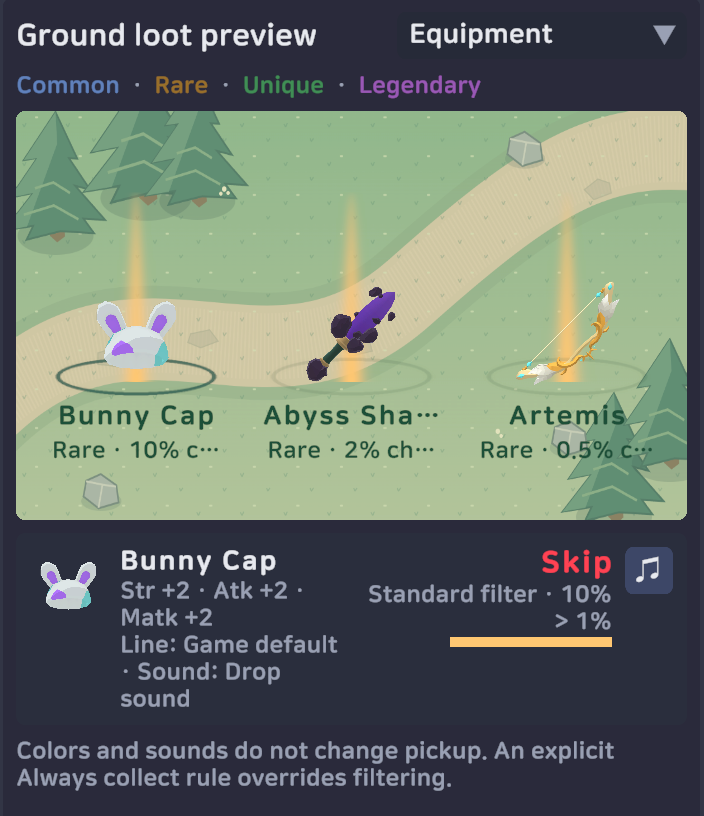
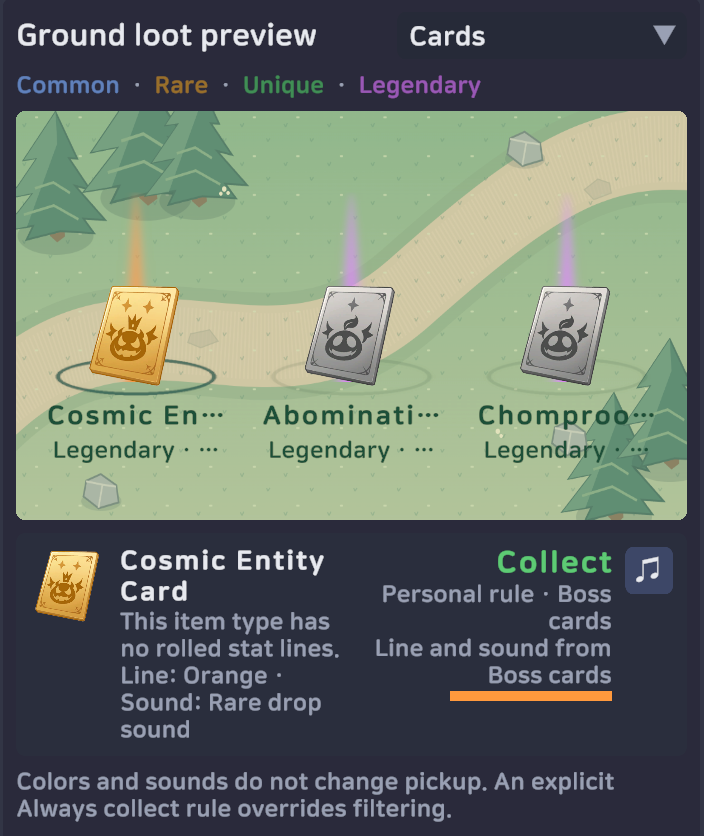
The preview uses the same decision the game uses. When you edit a rule, the preview already uses your unsaved changes. So you can test a rule before you save it.
The note under the preview says: Colors and sounds do not change pickup. An explicit Always collect rule overrides filtering.
7. Personal rules
A personal rule is your own line in the filter. A rule can collect an item. A rule can also only paint it. You can have up to 40 rules.
Click the Personal rules tab to see your list.
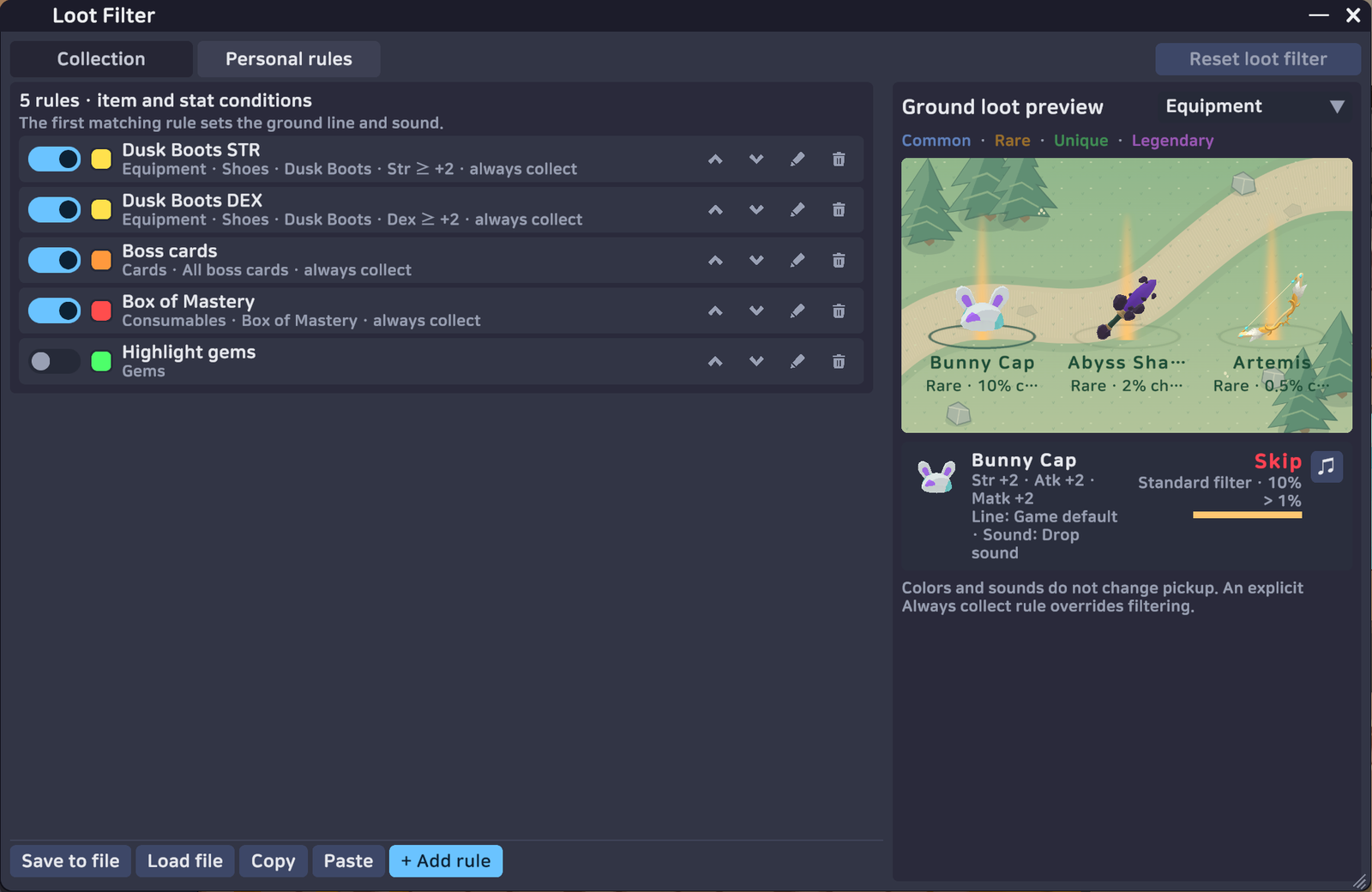
Each row has these controls:
- The switch on the left turns the rule on or off. An off rule is ignored. Use it to park a rule without deleting it.
- The colour square is the rule's ground line colour.
- The ↑ and ↓ arrows move the rule up or down. The game reads your rules from the top down.
- The pencil opens the rule in the editor.
- The trash can deletes the rule. It does not ask first.
Make a rule
Click + Add rule. The rule editor opens in place of the list. Its title is New rule. Fill in only the parts you need. An empty field means "any".
| Field | What to put there |
|---|---|
| Rule name | A short name for you, up to 32 letters. For example "Dusk Boots STR". A rule needs a name. |
| Item category | Equipment, Artifacts, Gems, Cards, Consumables, Materials or Cosmetics. |
| Equipment group | The gear group, for example Shoes. Equipment only. All equipment means any group. |
| Equipment type | The exact type inside that group. For Artifacts this is the artifact slot. Type a few letters to search. Leave it on Any type if you do not care. |
| Item | One exact item. Type a few letters to search the list. Leave it on Any matching item for all items. For Cards and Gems, the top of this list also has the boss options. See below. |
| Max-value stats | Ask for 1, 2 or 3 stat lines at their highest value. Equipment and Artifacts only. Any number means no limit. |
| Required stats | Add a stat line and a minimum value. Equipment and Artifacts only. See below. |
| Always collect matching drops | On: the rule picks the item up. Off: the rule only changes the colour and the sound. A new rule starts with this on. |
| Ground line colour | The colour of the light line above the drop. |
| Drop sound | The sound the drop makes when it lands. |
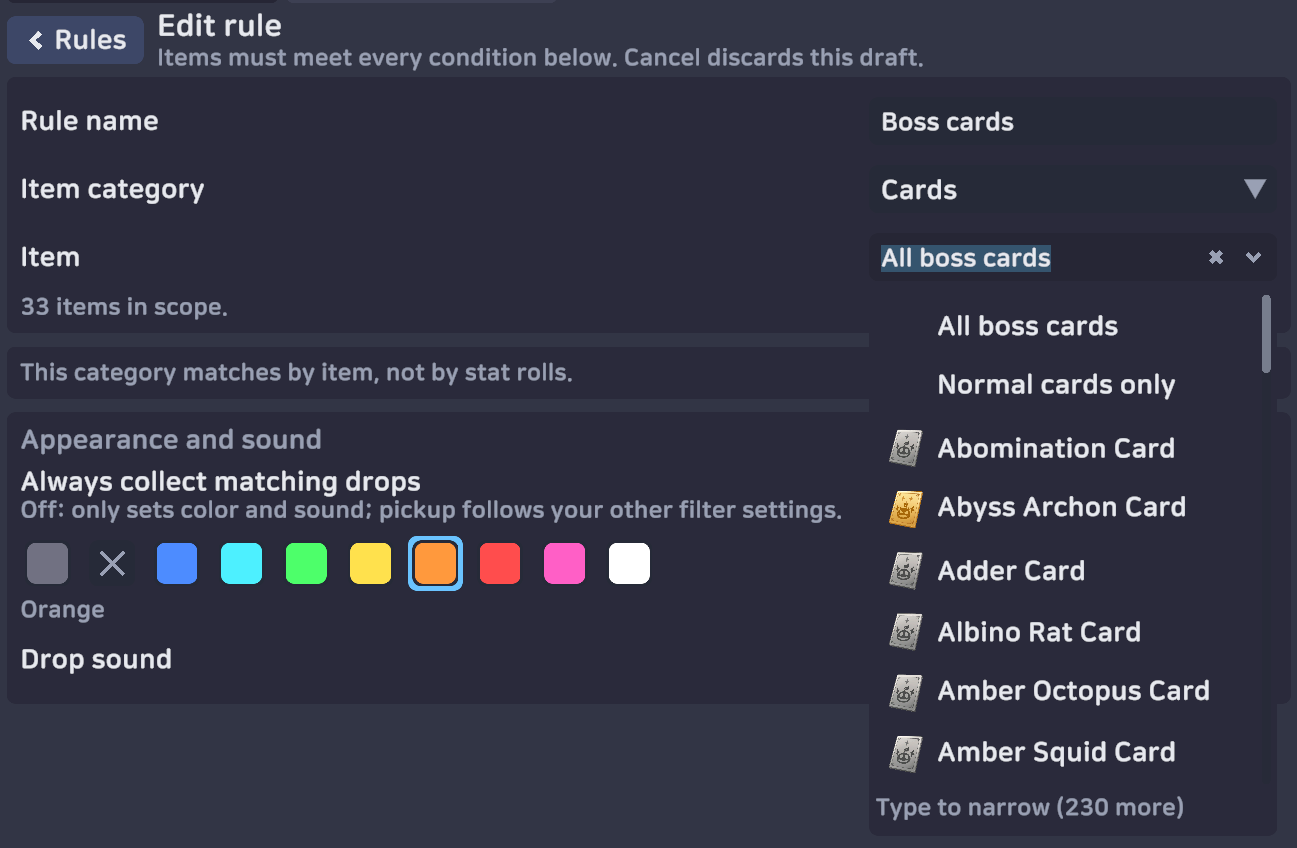
Under the fields, a line counts the items your rule can match. For example: 33 items in scope.
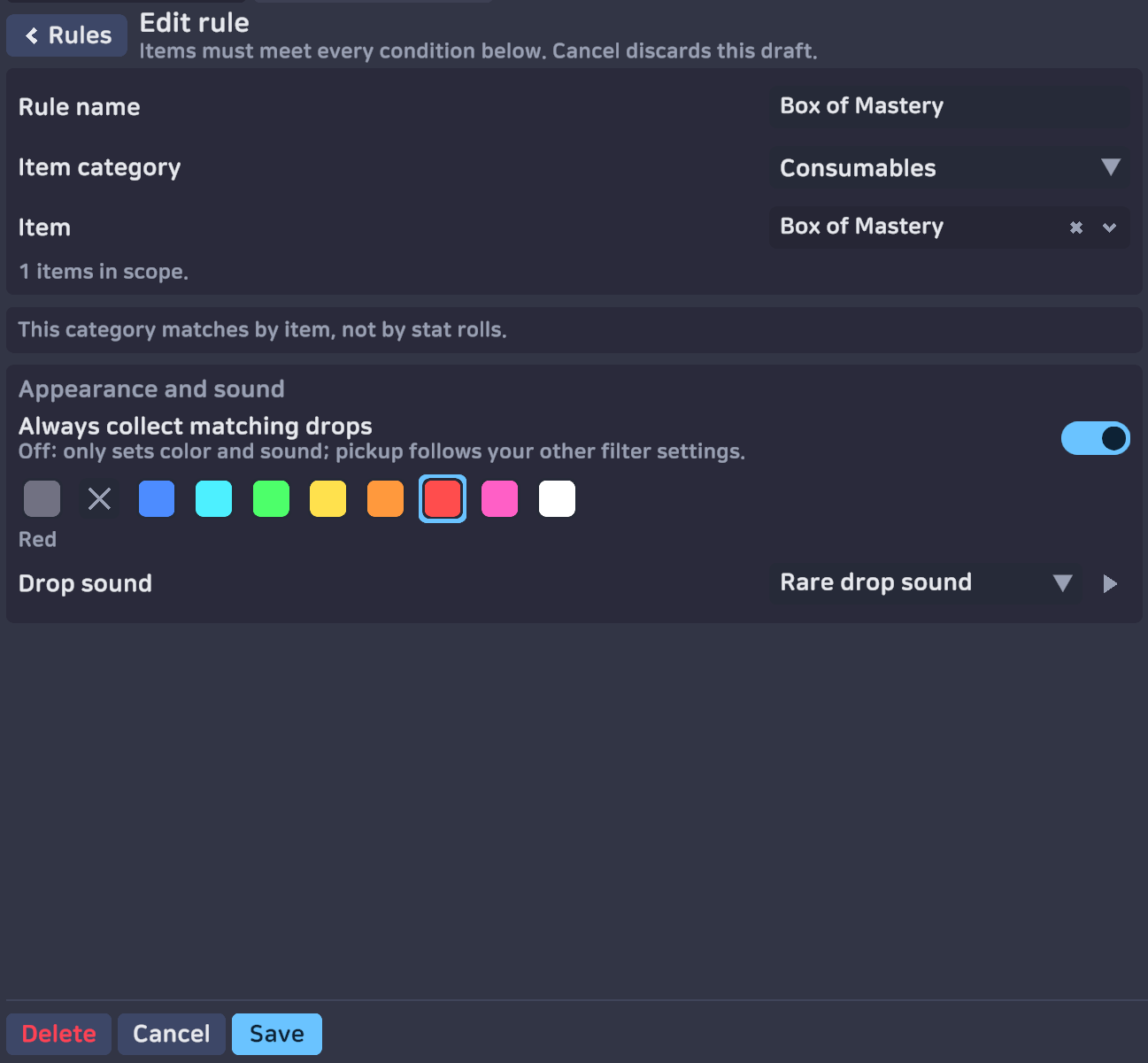
The Item list
Click the Item field and type a few letters. The list shows matching items with their pictures. It shows up to 50 at a time. Type more letters to find the rest. Press Enter to take the first item in the list.
The list only holds items that really drop in the game. Event items are not in the list.
A rule can name an item that no longer drops, for example from an old file. Then the editor shows the name with (doesn't drop) after it.
Boss cards and boss gems
For Cards and Gems, the top of the Item list has two extra choices:
- Cards: All boss cards and Normal cards only
- Gems: All boss gems and Normal gems only
Pick one of them instead of one item. The rule then matches every boss card (or gem), or every card (or gem) that is not from a boss.
Required stats
Click + Add stat to add a line. Pick a stat and pick a value. The value is picked from a list, not typed. The list only holds values the stat can really roll. One rule can hold up to 6 stat lines.
The game text says: Each stat must be on the drop and reach its minimum displayed value. The Match all label next to the heading means the same thing: every line must be true.
Most stats show ≥, which means "at least". A few stats are good when they are low, for example a lower MP cost. These show ≤ and a minus value. A line like "≤ −10%" means "a cut of 10% or more".
Appearance and sound
Pick a square for the light line above the drop. The name of your choice shows under the squares.
- The grey square is Game default. It keeps the normal rarity colour.
- The × is No ground line. It removes the tall light beam. The glow on the ground stays.
- Then eight colours: Blue, Cyan, Green, Yellow, Orange, Red, Pink and White.
For Drop sound you can pick Game default, Drop sound, Rare drop sound or Silent. The small play button plays the sound.
Save or leave the editor
- Save keeps the rule. For a new rule this button reads Add rule.
- Cancel and ‹ Rules close the editor and throw your changes away.
- Delete removes the rule. It is only there when you edit an old rule.
Did you change the rule and then close the window or press Esc? Then the game asks Save changes? with Save and Discard. Switching to the Collection tab throws the changes away without asking.
Order matters
The game reads your rules from the top down.
- The first matching rule sets the ground line and the sound.
- The first matching rule with Always collect matching drops collects the item. The game stops reading there.
Make a rule from a Storage or Market filter
Storage and the Market have a My filters menu. Set up a search there, open My filters and click Make a loot rule from it. The game adds a new rule with Always collect matching drops on.
A loot rule covers one category, and it cannot use every search setting. The message tells you which parts were left out, after the words not used by loot rules. Click Open loot rules in the message to check the new rule.
8. Worked examples
Example A — collect only rare consumables
Goal: pick up rare consumables and leave common ones.
- Open the Collection tab.
- Under Collection overrides, set Consumables to Use standard filter.
- Turn Always Loot Consumables off.
- Set Drop Rate Threshold to a small value, for example 1.
Now a consumable with a 1% chance is collected. A consumable with a 10% chance is skipped. Pick Consumables in the preview to check it.
Example B — Dusk Boots with STR ≥ +2 or DEX ≥ +2
One rule cannot say "or". So you need two rules. Both rules need Always collect matching drops turned on.
Rule 1
- Rule name: Dusk Boots STR
- Item category: Equipment
- Item: Dusk Boots
- Required stats: Str, ≥ +2
- Always collect matching drops: on
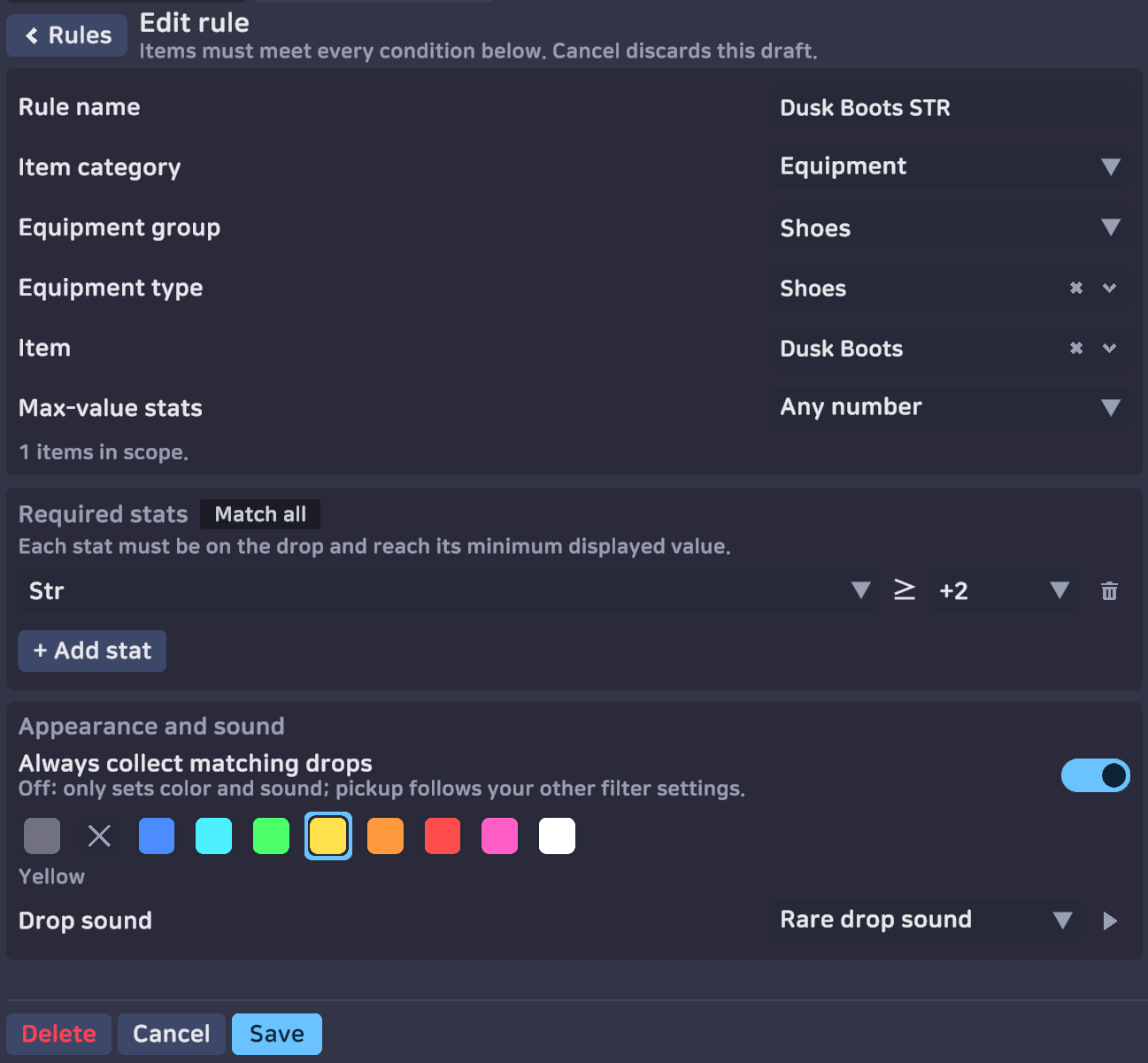
Tip: pick Equipment group and Equipment type first. Then the Item list only shows matching items, so Dusk Boots is easy to find.
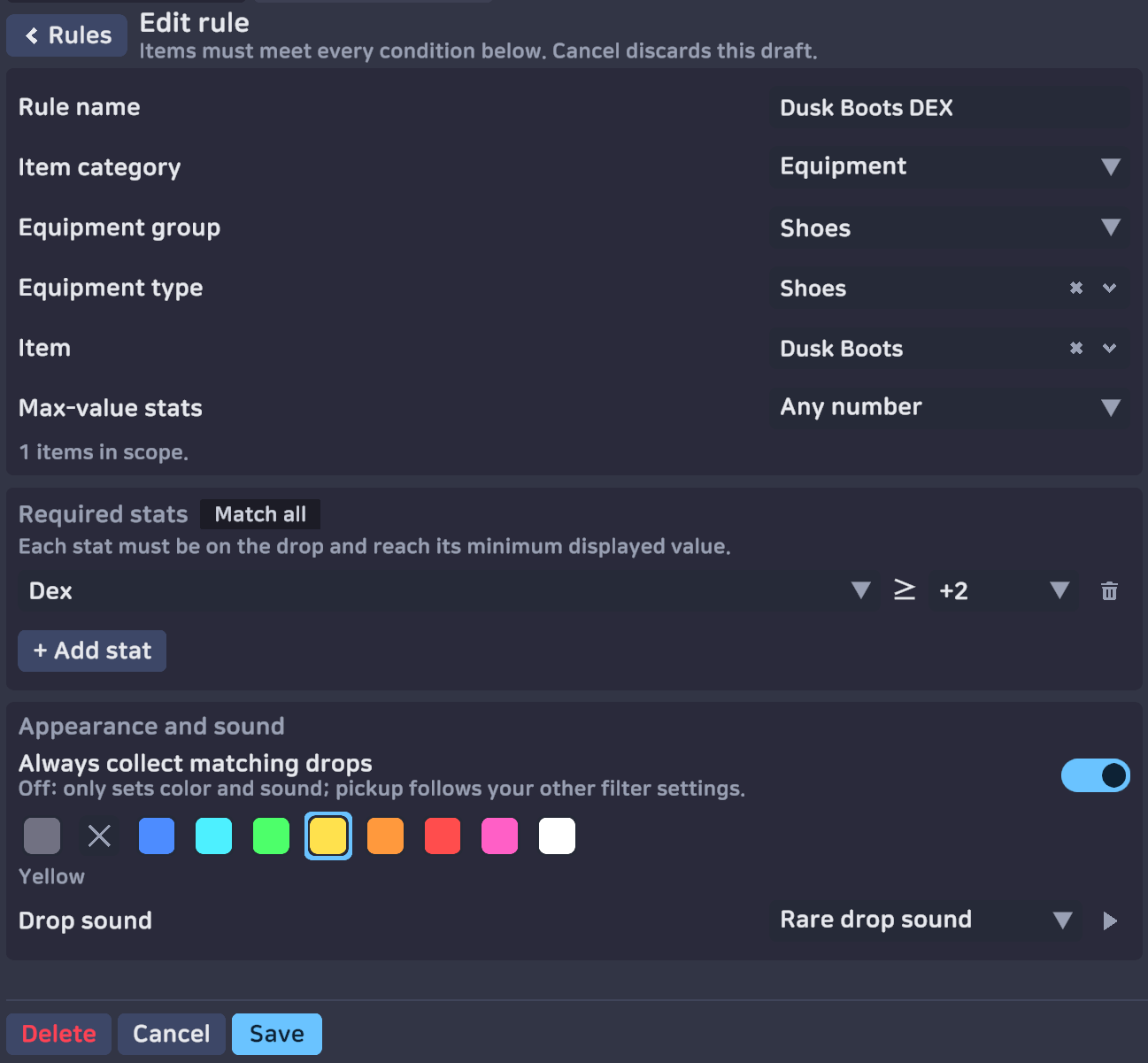
Rule 2
- Rule name: Dusk Boots DEX
- Item category: Equipment
- Item: Dusk Boots
- Required stats: Dex, ≥ +2
- Always collect matching drops: on
Example C — every boss card
Goal: always pick up boss cards and mark them orange, but leave normal cards to the threshold.
- Open Personal rules and click + Add rule.
- Rule name: Boss cards.
- Item category: Cards.
- Item: All boss cards.
- Keep Always collect matching drops on. Pick the orange square.
- Click Add rule.
Pick Cards in the preview. A boss card now says Personal rule · Boss cards.
Example D — show an item but do not collect it
Goal: see a bright line on the ground, and decide by hand.
- Make a rule for the item.
- Pick a strong colour under Appearance and sound.
- Turn Always collect matching drops off. A new rule starts with it on.
The drop now has your colour. Your loot key and your pet still follow the other settings. The game text says: Off: only sets color and sound; pickup follows your other filter settings. You can click the item with the mouse at any time.
9. How the game decides
For every drop the game asks four questions, in this order. The first answer wins.
- Your personal rules, from top to bottom. The first matching rule sets the ground line and the sound. If a matching rule has Always collect matching drops, the drop is collected.Answer: collect. The game stops here.
- The category mode in Collection overrides. This question is only asked when the mode is not Use standard filter.Answer: the mode decides, yes or no.
- The Always Loot switch for that category.Answer: collect, when the switch is on.
- The Drop Rate Threshold. The drop is collected when its chance is equal to or below your value.Answer: collect or skip.
This is why a rule beats a category mode. And it is why a category mode beats the switch and the threshold.
10. Party loot
With the Even Share setting, party drops go to members in turn, one after another.
Your loot filter only decides what your loot key and pet pick up. It does not change whose turn it is. A drop that belongs to another player is never picked up by your loot key or pet.
11. Reset, save and share
Reset
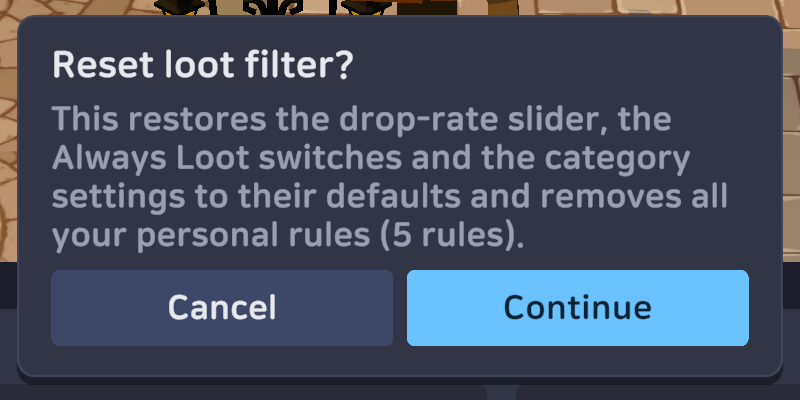
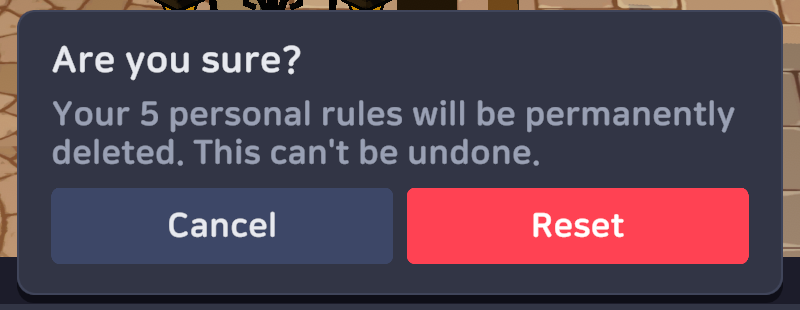
The window has a Reset loot filter button at the top right. It puts the threshold, the switches and the category modes back to default. It also deletes all your personal rules.
The game asks you twice. The first popup is Reset loot filter? with Cancel and Continue. The second popup is Are you sure? with Cancel and a red Reset button.
Save and load your rules
The Personal rules tab has four buttons at the bottom.
| Button | What it does |
|---|---|
| Save to file | Writes your rules to a file on your computer. The game tells you the file name. |
| Load file | Reads rules from a file you choose. |
| Copy | Copies your rules to the clipboard as text. The word Copied shows for a moment. |
| Paste | Reads rules from the text on your clipboard. |
Save to file and Copy are grey when you have no rules.

Only your personal rules go into the file. The threshold, the switches and the category modes stay as they are.
Import
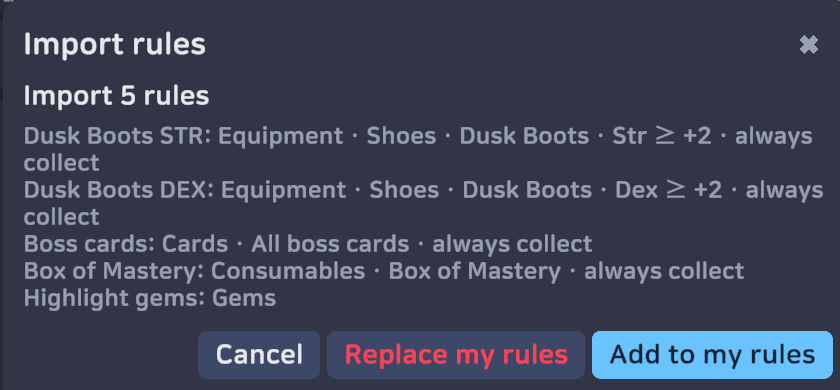
After Load file or Paste the game shows the Import rules window.
The window lists the rules it found. Each line shows the rule name and what the rule does. For example: Dusk Boots STR: Equipment · Shoes · Dusk Boots · Str ≥ +2 · always collect. A long list shows the first six rules and then +N more. Read this list before you click.
Rule names are shown as plain text. Any formatting codes in a name are not used.
- Add to my rules — keeps your rules and adds the new ones at the end.
- Replace my rules — deletes your rules and uses the new ones. This asks you again first.
- Cancel — changes nothing.
The limit of 40 rules still applies. If an import would go over the limit, the game tells you and stops.
Share with friends
Click Copy. Open Discord. Paste the text into a message. Your friend copies that text and clicks Paste in the game.
12. Questions and problems
Where did the loot filter go? It used to be a page in Settings.
It is still in Settings. Click Loot Filter in the list on the left. It now opens in its own window.
My pet does not pick up item X.
The pet uses the same filter as your loot key. Pick that item's category in the Ground loot preview. If a sample says Skip, the reason line tells you which setting said no.
Check three things in order. Is the category set to Manual pickup only? Is the Always Loot switch off? Is the item's drop chance bigger than your Drop Rate Threshold?
I can't click an Always Loot switch.
That category has a mode in Collection overrides. The switch shows Category override active below. Set the mode back to Use standard filter.
A drop has no light beam.
Some rule probably uses No ground line (the × square). That option removes the beam on purpose.
Remember that the first matching rule owns the look, even when it does not collect.
My rule does not work.
Check the switch on the rule row. An off rule is ignored.
Check the order. A rule higher in the list may collect the item first.
Check Always collect matching drops. Without it, a rule only changes the colour and the sound.
Check your conditions. All conditions in one rule must be true on the same item. One stat line must reach the value on its own.
I can't find an event item in the Item list.
The Item list only holds items that drop in normal play. Event items are not in it. To pick up an event item, use its category. For example, for an event food, turn on Always Loot Consumables, or make a Consumables rule with no item.
My filter is gone on another computer.
The filter is saved on the computer where you set it. On the old computer, click Save to file or Copy. On the new computer, click Load file or Paste. Set the threshold and the switches again by hand.
I set the threshold to 0%. Why do I still get some drops?
An Always Loot switch, a category mode or a personal rule can still say yes. Those are asked before the threshold.
Does the filter delete items?
No. A skipped drop stays on the ground. You can pick it up with a mouse click. Drops do disappear after some time, like always.
Labels on this page are taken from the game client. If the game changes a word, tell us on Discord and we will update the guide.